QuickBooks setup
Configure the Intuit app, connect the intended company, and verify the accounting round trip. Start from the operator guide for shared credential and deployment steps.
The short version: the callback URL has to be registered at Intuit first. OAuth will not redirect anywhere it has not been told about in advance, so a deployment whose callback is not on the list gets an Intuit error page instead of a connected company, and nothing in ezacto's logs explains it.
Everything below is per app, and an app belongs to a workspace on developer.intuit.com. Use the separate development and production key sets for their corresponding environments. Separate apps may also be used for operational isolation; two apps are not inherently required just because there are two key sets. Sandbox keys cannot reach a real company's books.
1. Create the app
My Hub → App dashboard → your workspace → Apps → +, then give it a name.
The name is what an operator sees on Intuit's consent screen when they connect, so it should be the product name rather than an internal one.
2. Ask for the accounting scope, and only that
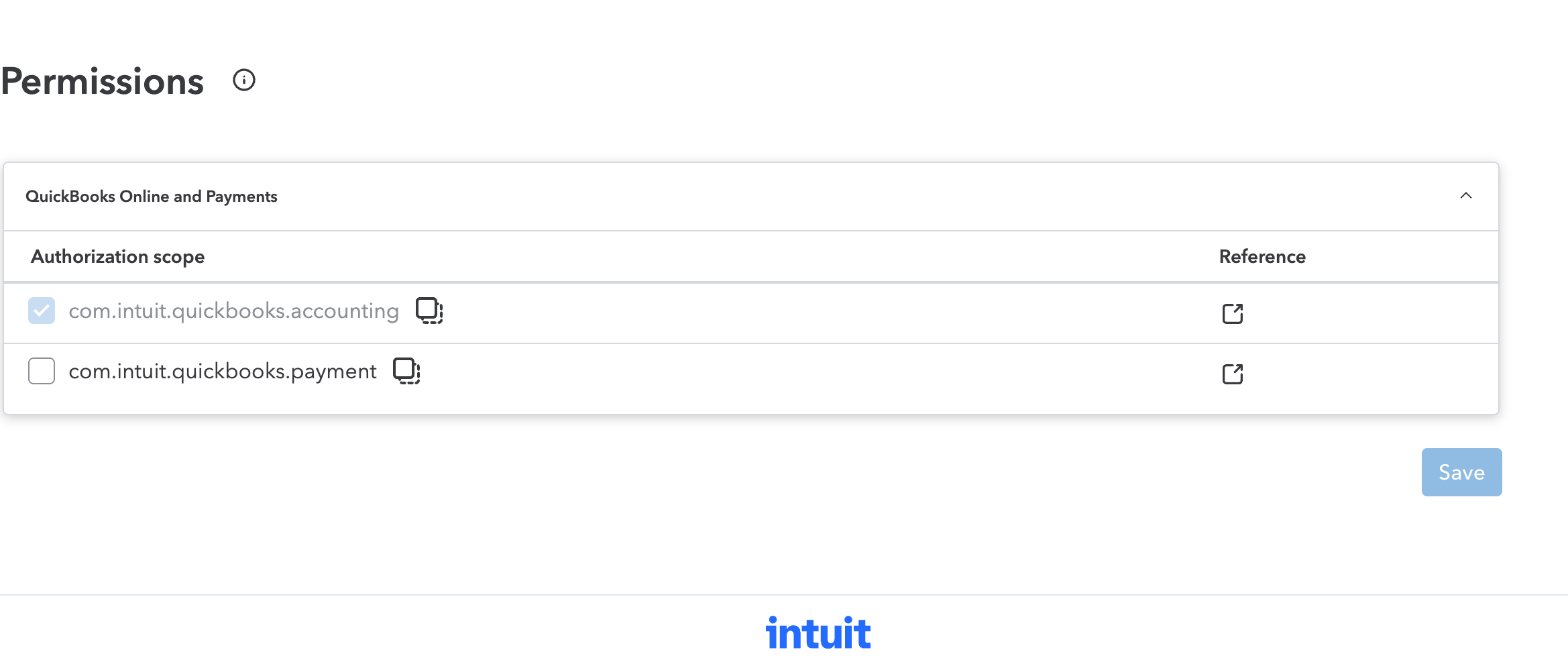
com.intuit.quickbooks.accounting covers customers, invoices and the payments
recorded against them — both directions of the mirror.
com.intuit.quickbooks.payment is not needed and should not be requested.
It is the card-processing API: taking a payment ourselves, rather than reading
one QuickBooks already took. Asking for it "in case" means asking every operator
to grant card processing to an app that does not process cards, and Intuit shows
them exactly that on the consent screen.
Making a mirrored invoice payable does not need it either — that is
AllowOnlineACHPayment on the invoice, which rides on the accounting scope and
on the company's own QuickBooks Payments account.
Intuit warns that permissions cannot be removed once added. They can be added later, so start narrow.
3. Register the callback URL
Settings → Redirect URIs. This is the step that is easy to miss and impossible to work around.
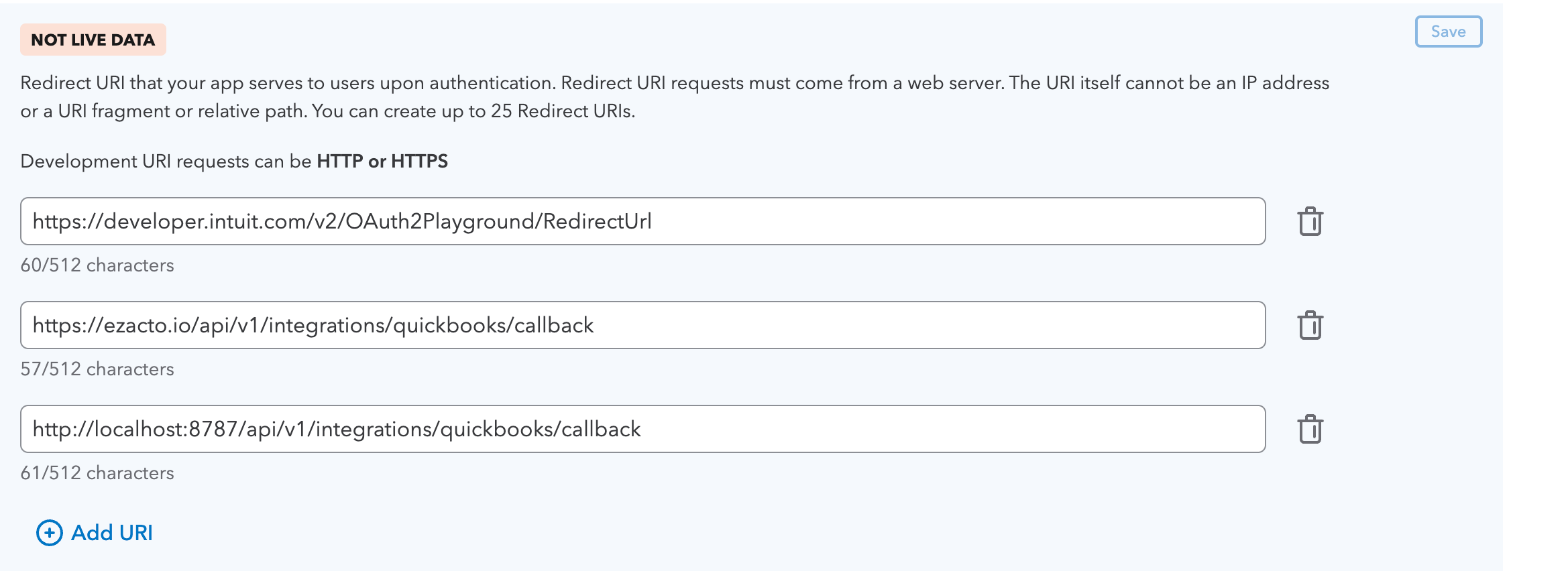
Add one per deployment that will connect:
https://<your-host>/api/v1/integrations/quickbooks/callback
For local work, the development environment accepts plain HTTP, so
http://localhost:8787/api/v1/integrations/quickbooks/callback is valid. The
production environment does not — it must be HTTPS.
Intuit's own OAuth Playground URL is pre-filled and worth keeping: it is how you test a token exchange without running ezacto at all.
Two traps here, both of which cost me time
The Save button is off-screen on a narrow window. The panel's Save sits at its top right, outside the viewport below roughly 1400px wide. Everything looks editable, entries appear to take, and navigating away silently discards them — there is no warning. If you do not see the toast reading "Changes saved here and in your settings", it did not save. Widen the window until Save is visible.
Saving is per panel. Each tab under Settings saves independently.
4. Webhooks, for payments coming back
Webhooks → Development / Production.
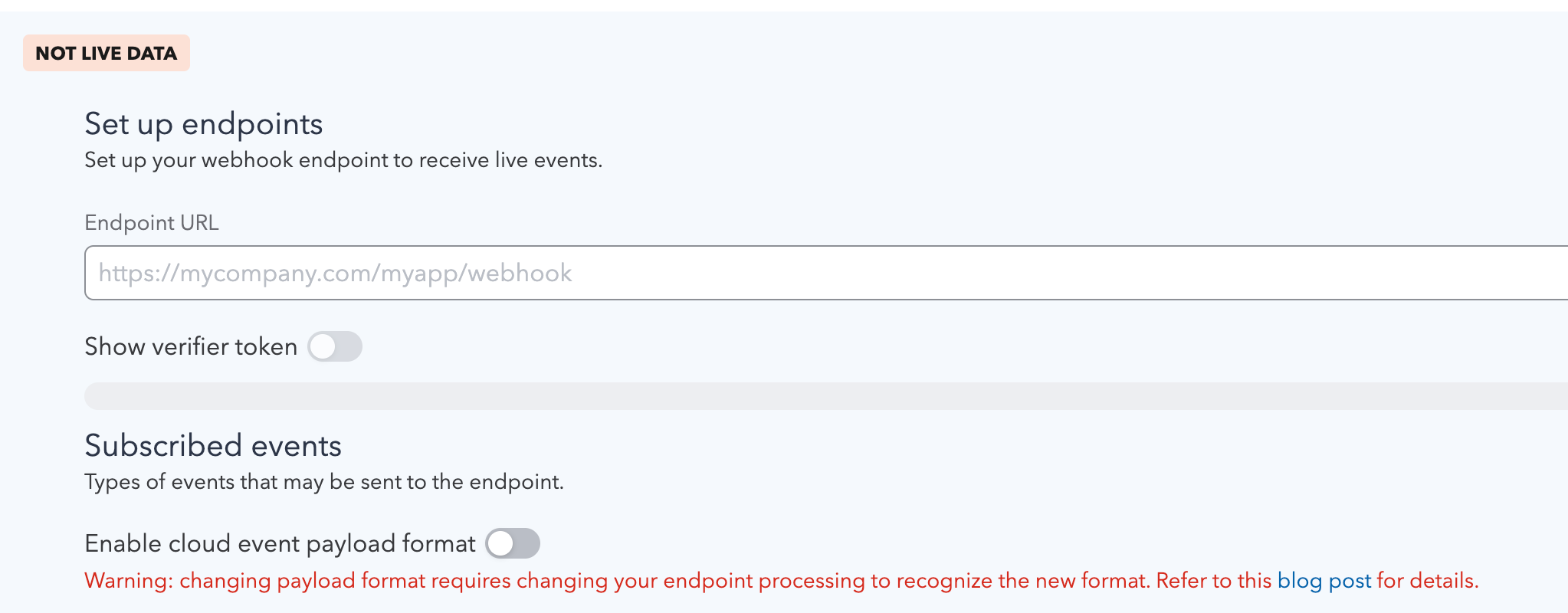
Three things matter:
| Endpoint URL | https://<your-host>/webhooks/quickbooks — on the site root, not under /api/v1, and not the OAuth callback. Must be publicly reachable HTTPS — Intuit will not deliver to localhost. For local work, use a tunnel. |
| Verifier token | Revealed by the toggle. Intuit signs every delivery with it (HMAC-SHA256, intuit-signature header), and the endpoint must verify that signature — the URL is public, and anything that reaches it is otherwise unauthenticated. |
| Subscribed events | Every entity is checked by default. Narrow it to Invoice and Payment; everything else is delivery volume for events that will be ignored. |
Enable CloudEvents payload format for this endpoint. Intuit's
mandatory migration deadline was July 31, 2026.
The handler accepts the current CloudEvents v1.0 array as well as legacy
eventNotifications batches, with the same raw-body signature verification.
intuitaccountid selects the connected company, intuitentityid names the
changed record, and type/time supply the operation and change timestamp.
The CloudEvent id identifies the notification; it is not a payment ID.
Both formats use the existing delivery claims. Receipt deduplication remains
keyed to the QuickBooks payment reference even when event timestamps differ.
Test the format in the owned sandbox before changing the production subscription.
Configure the endpoint after it is deployed. Intuit begins delivering as soon as it is saved, and deliveries to a URL that 404s are retried and then dropped.
What a payment coming back does
A payment made in QuickBooks against a mirrored invoice is recorded on that invoice. Two kinds are not:
- One ezacto put there. A payment recorded here — Mark paid, or another
provider's — is copied into QuickBooks, and QuickBooks announces it like any
other payment. It is recognised by the link the mirror saved, or by the
ez-<payment id>reference stamped on it, and is not recorded a second time. - One larger than what the invoice still owes. It is left unrecorded rather
than overpaying the invoice; usually it is the same money already marked paid
by hand. It is logged as
[payments] provider payment not recorded, and the reason stays on the delivery inquickbooks_webhook_deliveries.skipped_reasonfor a person to settle.
Comparing the books (reconciliation report)
Edits, voids and deletions made in QuickBooks are not copied back, so the two
books can drift. Settings → Accounting → Compare with QuickBooks (or
GET /api/v1/integrations/quickbooks/reconciliation, for administrators and
accounting) reads every invoice in the company and every open or paid invoice
here, and lists the differences. It only reads: nothing is corrected on either
side, and no invoice, payment or QuickBooks document is written.
The rule for which side is right is the one the mirror already follows: ezacto for the invoice (number, total, currency), QuickBooks for money received there. Tax is not compared separately; the check is that the totals agree to the cent.
| Difference | Meaning |
|---|---|
| amount differs | The invoice total here and in QuickBooks disagree. |
| currency differs | QuickBooks states a currency and it is not this invoice's. A single-currency company states none and is not compared. |
| payments differ | Money received (total less balance in QuickBooks, the sum of receipts here) disagrees. A payment made in QuickBooks and not yet recorded here, a partly paid invoice, and a receipt here QuickBooks does not hold all show up this way. |
| voided in QuickBooks | The document was zeroed with the note "Voided". |
| missing in QuickBooks | No QuickBooks invoice by link or by number (including one deleted since it was mirrored). |
| missing here | A QuickBooks invoice no invoice here is linked to or numbered after. |
An invoice not yet linked by the mirror is paired with QuickBooks by number and shown as not linked. A company with more than 20,000 invoices is refused rather than reported on partially.
The same report lists payments voided or deleted in QuickBooks that a
receipt here came from, next to the invoice differences, with the receipts and
their invoices. The receipt stays on the invoice and nothing is corrected: it is
a fact for the bookkeeper to settle, by hand, on whichever side is wrong. A
void or delete of a QuickBooks payment no receipt here came from is not listed.
It is learned from the webhook (Void and Delete), from the catch-up below,
or from a payment read that finds the payment gone.
Catching up on missed webhooks
A webhook Intuit never delivered, or one delivered while ezacto was down, leaves
no trace. Once an hour the Worker asks Intuit's change data capture for the
payments changed since a stored cursor (quickbooks_sync_cursors, one row per
company) and applies them exactly as the webhook would, through the same claim,
so a change the webhook already processed is skipped and a payment is never
recorded twice.
- The first run only places the cursor at that moment. History before it is not replayed into the books unasked; the reconciliation report compares it.
- The cursor moves only after a whole window of changes has been applied. A
failed run leaves it where it was, records
failed, and is retried. - Each run reads from five minutes before the cursor, because re-applying is free and a gap is not.
- Intuit throttles with 429. Catch-up records the failure and a durable retry
time from
Retry-After(delta seconds or an HTTP date), or 60 seconds when the header is absent or invalid. It never sleeps inside a request. Scheduled runs before that time make no provider call; a restart preserves the cooldown. - A CDC response at the 1,000-object ceiling is incomplete evidence. Catch-up
applies none of it, preserves the previous cursor, and records
full_reconcile_needed. CDC has no continuation cursor, and deleted objects follow active ones: advancing to the newest visible timestamp could lose an omitted change. Compare the books; this does not automatically reset recovery. - Intuit replays 30 days at most. A cursor older than 29 days is not read; the
run records
full_reconcile_needed, the report says so, and the report is the way to compare the books. After an old gap, disconnecting and reconnecting allows the next run to start a fresh cursor. A recent capped window is not automatically discarded by reconnecting.
The report shows how the last run ended. See the dated reconciliation boundary audit for implemented behavior, provider limitations, and remaining acceptance. The self-hosted container has no cron and does not run catch-up. Only payments are caught up: an invoice's webhook has no effect here either, so nothing is lost by not reading invoices.
5. Keys
Keys and credentials, per environment. The client ID and secret are revealed by a toggle.
The secret is a credential: it belongs in the deployment's secret store, never in the repository, never in a URL. ezacto sends it as HTTP Basic authorization on the token exchange, which is where Intuit expects it.
Development keys reach sandbox companies only. Production keys require going through Intuit's app assessment first, which is a separate process with its own review — worth starting before you need it rather than on the day you do.
6. Production access
The Production tab of the app is locked behind Intuit's questionnaire. It asks how the app handles OAuth and data; these are the answers that describe ezacto, so they can be given without guessing:
| Intuit asks about | ezacto |
|---|---|
| The OAuth flow | Authorization code, browser-initiated by an administrator. No implicit flow, no client credentials. |
| Token refresh | Only when a call is about to be made and the stored access token is within two minutes of its expiry; never on a timer. The rotated refresh token is stored before the call goes out. |
| Endpoint discovery | Reads Intuit's OpenID discovery document rather than hardcoding endpoints. |
| Scopes | com.intuit.quickbooks.accounting only. No OpenID, no payments scope. |
| What is stored | The access and refresh tokens and the company (realm) id, in the deployment's database; refreshed tokens overwrite the old ones. Nothing from the books is copied except the ids of the invoices, customers and payments the mirror wrote or adopted. |
| Disconnect | Revokes the tokens at Intuit and forgets them. |
| Webhooks | Every delivery's HMAC signature is verified against the verifier token before it is read. |
Two things the production tab needs that the development tab did not: its own
redirect URI (the production host's /api/v1/integrations/quickbooks/callback,
HTTPS) and its own webhook endpoint with its own verifier token. The pairs
are per environment; a production key with the development callback registered
fails with "The redirect_uri query parameter value is invalid" at the consent
screen.
7. Where the keys go
Four values per deployment. The Worker reads them as secrets; the container reads them from its environment.
| Name | Value |
|---|---|
QUICKBOOKS_CLIENT_ID |
the client ID of the environment's key pair |
QUICKBOOKS_CLIENT_SECRET |
its secret |
QUICKBOOKS_WEBHOOK_VERIFIER_TOKEN |
the verifier token of that environment's webhook |
QUICKBOOKS_ENVIRONMENT |
sandbox for a development key; anything else, including unset, is live books |
ACCOUNTING_ENABLED |
false turns accounting off even where the keys are set: its routes answer 403 module_disabled, and the app hides the Accounting section and the invoice QuickBooks line. Unset or true leaves it on; any other value stops start-up |
How they reach a deployment, and how to prove they did, is in Integrations: where the keys go. Once they are in place, Settings → Integrations offers Connect to QuickBooks and, after the consent screen, names the connected company.
What ezacto does with all of this
- An administrator opens Settings → Integrations and presses Connect to QuickBooks.
- ezacto reads Intuit's OAuth discovery document (
/.well-known/openid_configuration, or the sandbox one whenQUICKBOOKS_ENVIRONMENT=sandbox) for the current authorization, token and revocation endpoints, caching it for an hour and falling back to the published endpoints if it cannot be read, then redirects to Intuit with the client ID, the accounting scope, the registered callback, and a single-usestate. - The operator picks a company and approves.
- Intuit redirects back to the callback with a code, the
realmIdof the company they chose, and thestate— which is checked before anything else happens. A callback whose state does not match is refused: without that check, a third party can walk an administrator through connecting their QuickBooks company to your instance. - ezacto exchanges the code for tokens and stores them against that realm.
From then on invoices mirror out when they are sent, and payments travel both
ways: one recorded in QuickBooks comes back over the webhook, and one recorded
here (Mark paid, or Record payment) is filed against the mirrored
invoice in QuickBooks as a Payment. That payment carries the ezacto receipt id
as its reference number (ez-<id>), which is how a retry finds what an earlier
run made and how a bookkeeper tells the two systems' receipts apart. An invoice
that was never mirrored is mirrored first, then paid. A receipt that arrived
from QuickBooks is never sent back, and an edit or deletion of a payment here is
not copied out: the linked payment is the bookkeeper's pointer.
Books that already hold your invoices (from Harvest, or hand-entered) are the common case on day one. An invoice QuickBooks already holds under the same number is adopted when its total agrees to the cent, on every path: the mirror that runs when an invoice is sent or a receipt is recorded here, the Sync to QuickBooks button on the invoice page, and a payment made inside QuickBooks that reaches the webhook. Nothing on the QuickBooks document changes on adoption; only the invoice link is recorded, and payments go to the customer the QuickBooks invoice is filed under. That customer is never changed afterwards: Harvest filed one client under a sub-customer per project, and an invoice stays where the books put it. The client's own customer link only decides where invoices created here go. A number QuickBooks holds for a different total is refused, and the invoice page says so.
Every mirror attempt leaves its result on the invoice, whether it created the
document, was refused (not connected when the invoice went out, a customer name
QuickBooks already holds under a different parent, an invoice number it holds
for somebody else), or failed outright (a lapsed token). The invoice page shows
that as a QuickBooks line under the facts -- Not connected, Not synced:
reason, or Synced to QuickBooks invoice 147 on Sep 17 · 1 payment synced --
and a Sync to QuickBooks button that mirrors the invoice and then every
payment on it not yet in QuickBooks. Pressing it twice creates nothing twice:
the links are what a second run finds. The button is for administrators and
accounting, and is not offered at all on a deployment without Intuit keys.
GET /api/v1/invoices/:id/quickbooks reports the same state and
POST /api/v1/invoices/:id/quickbooks/sync runs the same sync, answering 409
quickbooks_refused with the reason when the invoice mirror is refused.
Sandbox companies
My Hub → Sandboxes gives you a QuickBooks company with fake data to connect against. A development-key connection can only reach these, which is the safety property that makes it reasonable to test the mirror at all: a bug writes an invoice into a sandbox rather than into somebody's books.
Verify and operate the connection
Set QUICKBOOKS_ENVIRONMENT=sandbox explicitly for development. The current
runtime treats any other value, including an omitted value, as production.
Confirm the selected company/realm in Settings → Integrations after OAuth;
a configured client ID is not a connected company.
In a sandbox company and test instance, use a disposable client and invoice: confirm the sent invoice mirrors once, a payment recorded there returns through the signed webhook, and replay does not duplicate the receipt. Check the background outbox/scheduler as well as the OAuth connection. Do not send a real client an invoice just to prove configuration.
| Symptom | Check |
|---|---|
| Intuit rejects the redirect | Exact callback URI saved under the matching key environment |
| OAuth succeeds but the wrong company appears | Selected realm; disconnect deliberately and reconnect the intended company |
| Invoice does not mirror | Outbox/scheduler, company mapping, provider response and stored sync outcome |
| Webhook signature fails | Environment-specific verifier token and the raw request body |
| Payment is accepted but skipped | Delivery reason, invoice mapping, already-recorded amount and remaining balance |
| CloudEvents delivery is ignored | Deployed release supports CloudEvents v1.0; exact connected intuitaccountid, subscribed Invoice/Payment entity, operation and RFC 3339 time; check the delivery reason |
Use the integration's Disconnect action (the administrator API is
DELETE /api/v1/integrations/quickbooks) to revoke/forget the connection rather
than deleting database rows. Review pending mirror work first. Rotate app secrets
through the authoritative environment and redeploy; reconnect if authorization
was revoked. Preserve invoice/payment links and audit evidence for reconciliation.
Provider references: Intuit webhook configuration
and OAuth authorization.
Implementation reference: packages/api/src/quickbooks.ts and
packages/integrations/src/quickbooks/.